


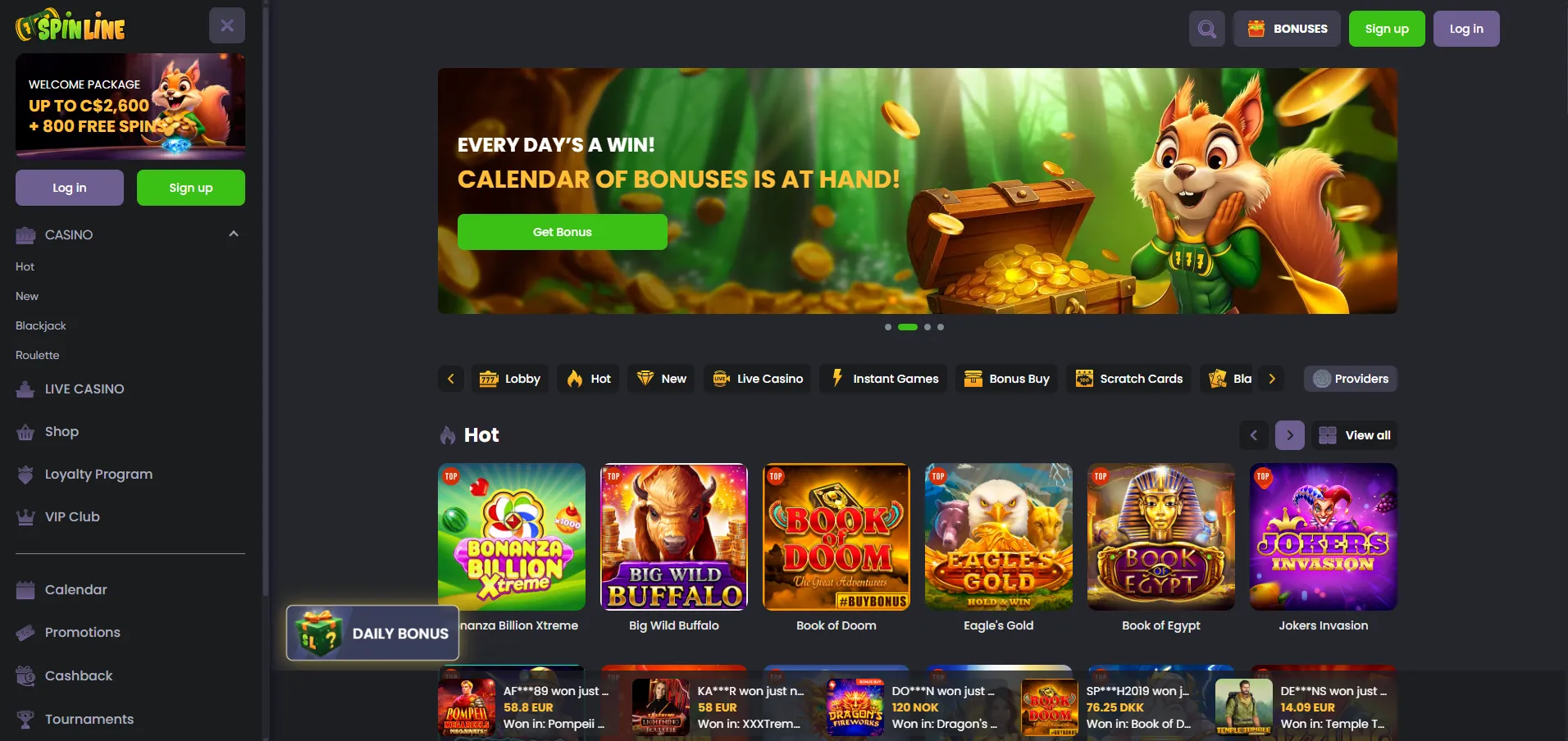
Mobile browsing is often the simplest way to compare casino categories, open a demo title and review account information without installing an app. The Canada-facing version of casino spinsy uses a responsive website, so the same browser session can cover casino games, live tables, sports, promotions and account controls. A smooth experience depends less on screen size than on choosing the right browser habits, checking the connection, and knowing which actions are better handled carefully rather than rushed on a small display.
What the mobile website is designed to handle
The mobile site is intended to adapt to Android and iOS screens rather than require a separate application. From a phone browser, users can browse casino categories, open live casino areas, review sports markets, access promotions and check account sections. The layout is built for scrolling and tapping, which can be more practical than trying to navigate a desktop page that has been reduced to fit a narrow screen.
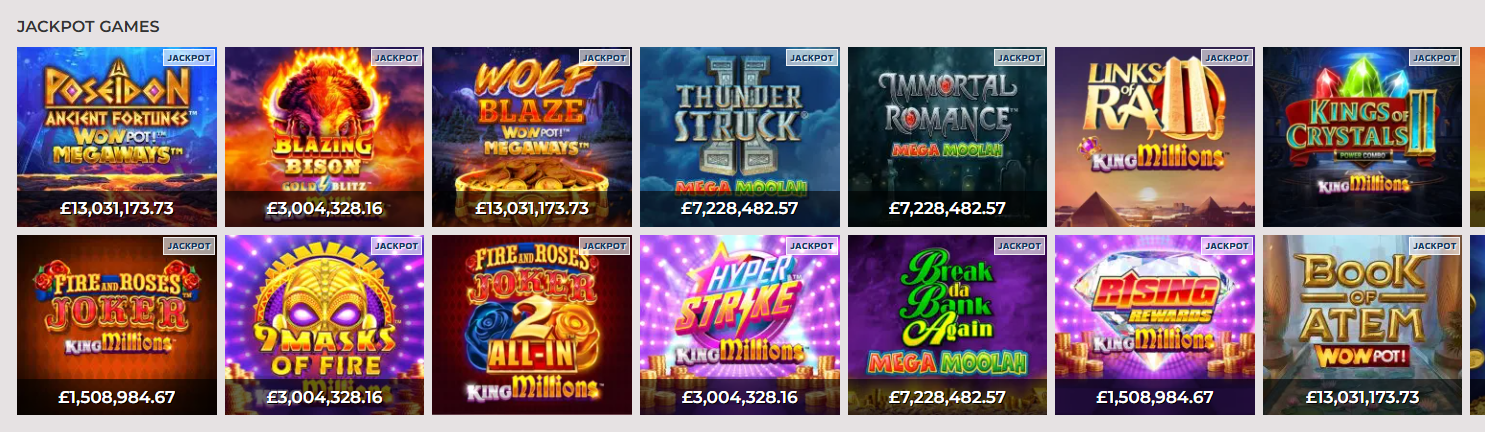
Browsing tools are particularly useful when the catalogue is large. Search can help locate a known title, while category and provider filters narrow the results. Sections such as Top, New, Popular, Exclusive, Live Games, Instant Games, Slots, Table Games and jackpots provide different starting points. Where a title supports demo play, a visitor can inspect its interface before deciding whether it is suitable for a longer session. Demo access should be treated as a way to understand controls, not as evidence of likely results.
A phone can also display account-related areas, including the cashier, bonus information, challenges, the rewards shop and VIP status. That convenience has a drawback: the small screen makes it easy to tap the wrong option or overlook conditions in a promotion. Before confirming an action, rotate the phone if necessary, enlarge the page and read the full detail. A responsive design improves access, but it does not remove the need to review what is being selected.
Use the browser rather than assuming an app is required
No native App Store or Google Play installation is required for the mobile experience described in the Canadian site material. Users can open the service in a current Android or iOS browser and use the mobile web account there. This distinction matters because an unofficial app or download found through an advertisement may not be connected with the operator. Staying within the normal browser reduces the risk of installing software from an unknown source.

For repeated visits, the site provides a Create Shortcut option. On Android, this can be done with the browser’s “Add to Home screen” command. On iOS, the Share menu provides the equivalent route for adding a shortcut. The resulting icon opens the mobile website; it is not a separate application with an independent balance, login system or set of account records. Keeping that distinction clear can prevent confusion when troubleshooting.
Before creating a shortcut, check that the browser address is correct and that the connection is encrypted. Avoid making shortcuts from pop-ups, redirected advertisements or messages that request urgent action. It is also sensible to keep the operating system and browser updated, use a screen lock and avoid saving credentials on a shared phone. For broader Canadian guidance on protecting devices and online accounts, consult Canada’s online safety guidance.
Build a safer browsing routine on a small screen
Mobile gambling sessions can begin with a quick browse and become longer than intended, partly because a phone is always nearby. A practical routine starts before opening a game: decide how long the session will last, what information needs checking and whether browsing is taking place in a suitable setting. A timer outside the casino page can be useful because it remains visible even when the browser changes screens.
Account controls deserve deliberate attention. Profile areas may contain personal details, payment information, active promotions and account status. Do not leave an unlocked phone unattended after opening these sections. When using a public or borrowed device, avoid saving passwords and sign out fully. On a personal phone, biometric unlocking and a strong device passcode provide an additional barrier if the handset is lost.
Notifications can also influence browsing behaviour. Promotional alerts, email reminders or browser prompts may encourage a return at a time that was not planned. Disable unnecessary notifications if they make it harder to follow a personal schedule. The available account controls should be checked directly rather than assumed: public descriptions indicate that self-exclusion can be requested through support, while the availability of other self-service limits may vary. If gambling no longer feels manageable, pause and contact support about the options that apply to the account.
Check pages carefully before taking account action
Mobile pages often show less information at once than desktop pages. A promotion may require scrolling through several panels, and a cashier page may display different methods depending on the account or region. Before choosing an offer or payment route, read the applicable terms, expiry information, playthrough conditions and any stated verification requirements. Do not rely on an older description, a search snippet or a social-media post when the current account page is available.
Verification is another reason to slow down. The operator may request identity documents, proof of address, payment ownership details or, where additional checks apply, source-of-funds information. A phone camera can capture documents, but the image should be clear, complete and sent only through the stated account or support process. Avoid uploading sensitive records through an unfamiliar form reached from an unsolicited message. If a requirement is unclear, ask support before submitting anything.
Payment and withdrawal information should be reviewed in the same careful way. The Canadian-facing material prominently lists Visa, Mastercard and Interac, while other methods may depend on the cashier, account and region. Processing stages, limits and document requirements can differ. A mobile screen may hide explanatory text behind an information icon, so expand every relevant section and save confirmation details securely. Never treat a pending request as proof that funds have been approved or dispatched.
Make browsing easier without losing control
Good mobile navigation is mainly about reducing unnecessary steps. Use search when a particular title is in mind, then use filters when comparing providers or categories. If a page becomes crowded, close unused panels rather than repeatedly scrolling past them. Landscape orientation can help with live tables or sports markets, while portrait mode is often faster for account pages. These small adjustments make it easier to distinguish a game screen from a financial or promotional screen.
Connection quality affects more than convenience. A weak signal can cause a page to load partially, delay a confirmation or make a live stream appear frozen. Do not repeatedly tap a button when the result is unclear, especially on a cashier or account page. Wait for the status to update, check the transaction history and contact support if the outcome remains uncertain. Taking a screenshot of a confirmation can help with later support, provided it does not expose unnecessary personal or payment information.
Finally, treat mobile browsing as an information task rather than an invitation to keep playing. Compare categories, read the relevant conditions and leave the page when the planned session ends. The browser makes access convenient, but convenience is not the same as suitability. A phone can support informed decisions when its search, filters and account pages are used deliberately, with security and personal boundaries given equal priority.
Mobile browsing questions answered
Is a separate mobile app needed?
No separate installation is required according to the available mobile information. The service works through a responsive Android or iOS browser website. A home-screen shortcut can provide quicker access, but it opens the mobile web account rather than a native application with separate software or account records.
Can mobile users browse games before playing?
Yes, the mobile lobby includes search, category and provider filters, and many listed titles support demo play. Demo mode can help users understand controls and presentation. It cannot establish that future results, payouts, volatility or return figures will follow a particular pattern.
What should happen if a mobile page or payment status looks wrong?
Do not repeatedly submit the same action. Check the account history, wait for the page to update and record any confirmation or error message. If the status remains unclear, contact the available support channel. Keep screenshots limited to relevant details and avoid sharing unnecessary personal information.